
How to Compress a PDF and not lose your Quality
By the AdorePDF team
If you have ever tried to email a PDF only to be told the file is too large, you already understand the frustration. Large PDF files slow down uploads, clog inboxes, and eat up storage space. The good news is that compressing a PDF does not have to mean sacrificing the sharpness of your images or the clarity of your text. This guide walks you through everything you need to know about PDF compression and how to do it the smart way.
Why PDF Files Get So Large
PDF files grow in size for several reasons. High-resolution images embedded inside a document are the most common culprit. When a designer exports a brochure or a photographer shares a portfolio, each image can carry millions of pixels of data. Fonts, embedded multimedia, annotations, and metadata also contribute to file weight. Understanding what is making your PDF heavy is the first step toward reducing it effectively.
The Difference Between Lossy and Lossless Compression
There are two broad approaches to compressing any digital file. Lossless compression reduces file size without discarding any data, meaning your document looks identical before and after compression. Lossy compression achieves greater size reductions by permanently removing some data, typically from images, in ways that are not always visible to the human eye. For professional documents like contracts or reports, lossless is preferred. For marketing materials where a smaller file size matters more, lossy compression is a practical choice.
Using AdorePDF to Compress Your Files
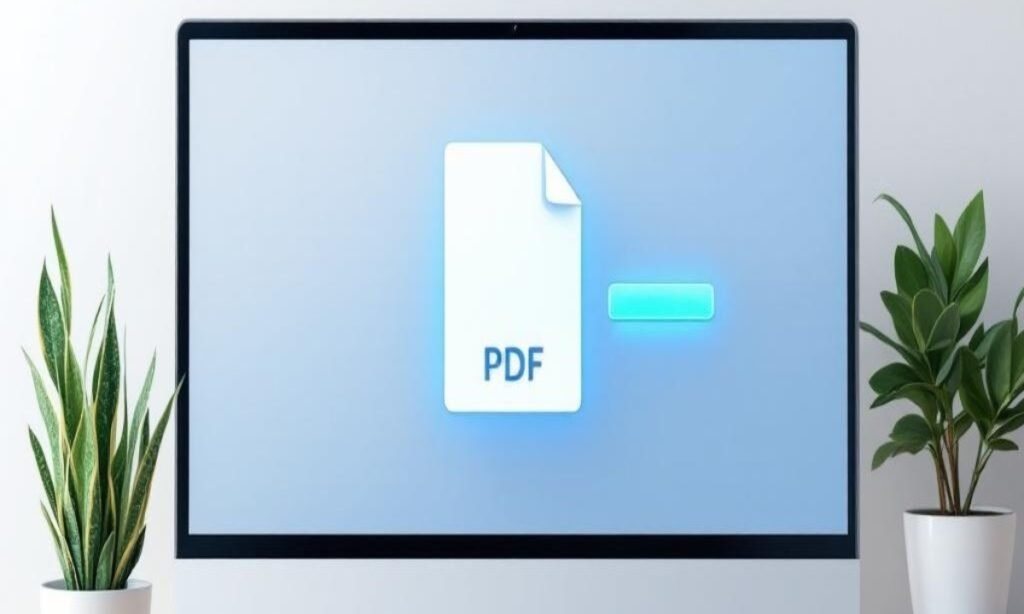
AdorePDF offers a free, browser-based PDF compression tool that handles the process in seconds. You simply upload your file, choose a compression level that suits your needs, and download the result. There is no software to install and no account required. The tool works on any device, whether you are on a Windows laptop, a Mac, or a smartphone. For everyday use, this kind of instant access makes all the difference.
Tips to Get the Best Results
Before compressing, consider whether you need all images at their current resolution. A PDF intended for screen viewing does not require 300 DPI images. Reducing image resolution to 72 or 96 DPI for digital distribution can dramatically cut file size. Also remove any unused pages, embedded fonts that are not critical, and hidden layers if your PDF editing tool allows it. Combining these steps with an online compressor gives you the most control over the final result.
When to Compress and When Not To
Compression is ideal for documents shared digitally, including email attachments, website downloads, and cloud storage. However, if a PDF is going to print, keep the original high-resolution version. Print shops require precise image data that compression can strip away. Always keep a backup of your original file before compressing, and use the compressed version only for its intended purpose.
Final Thoughts
Compressing a PDF is one of the simplest ways to make your documents more shareable and storage-friendly. With tools like AdorePDF, the process takes less than a minute and requires no technical expertise. Whether you are a student, a business professional, or a creative, knowing how to compress files efficiently is a skill that saves time and keeps your workflow moving.